

Description
NewsletterScriv is email for authors. This plugin puts your NewsletterScriv signup forms on your own WordPress site without touching code:
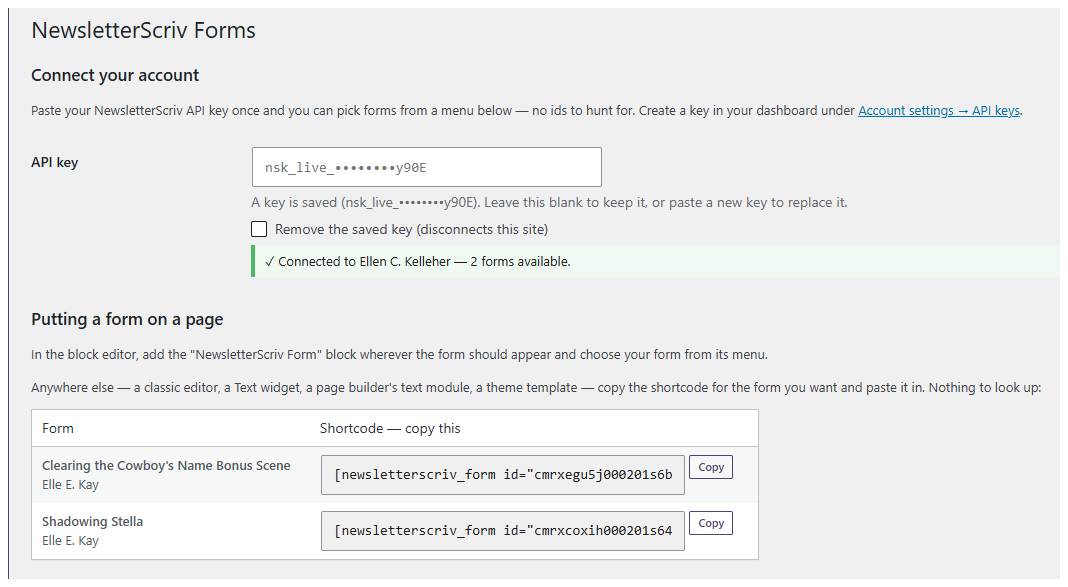
- Connect once — paste your NewsletterScriv API key under Settings NewsletterScriv and every screen picks up your forms by name. No ids to hunt for.
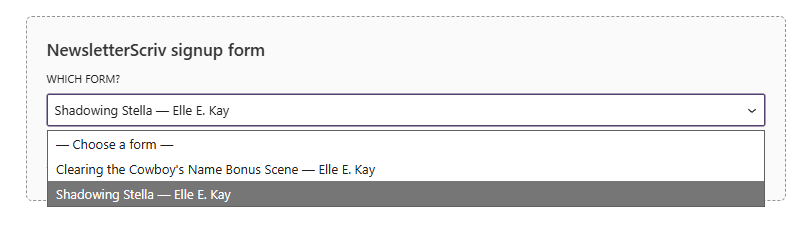
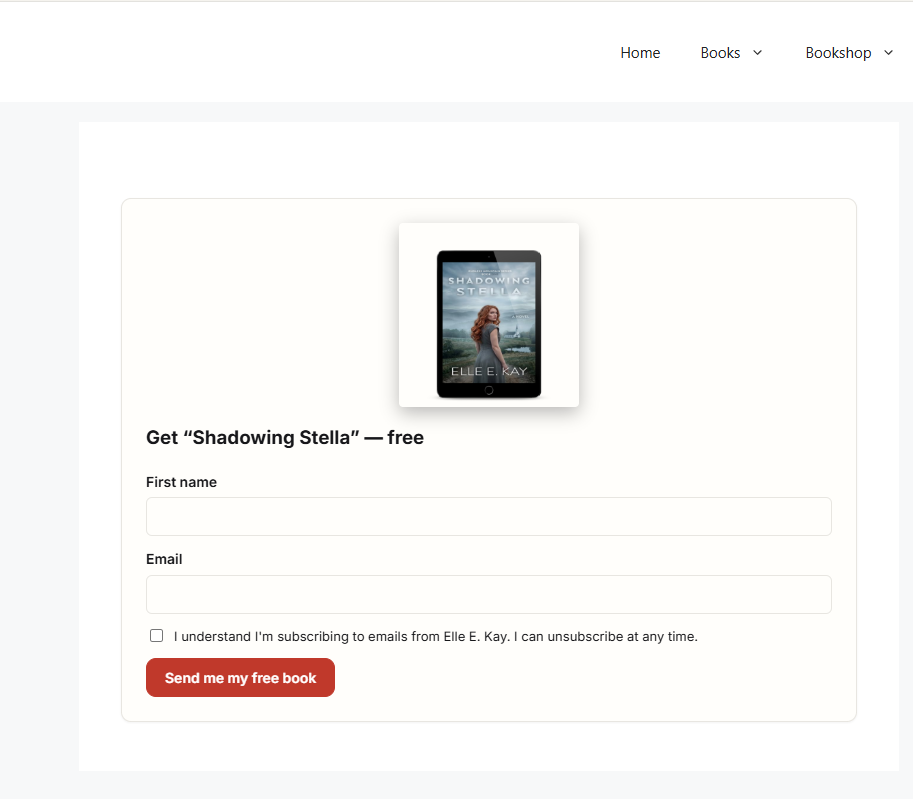
- A block — add “NewsletterScriv Form” wherever the form should appear and choose your form from a menu. It sizes itself to its content and wears the colors you set in the form’s Customize editor.
- A shortcode — for classic editors, Text widgets, page builders, and theme templates. Settings NewsletterScriv lists every form with its shortcode ready to copy, so the id is copied rather than looked up.
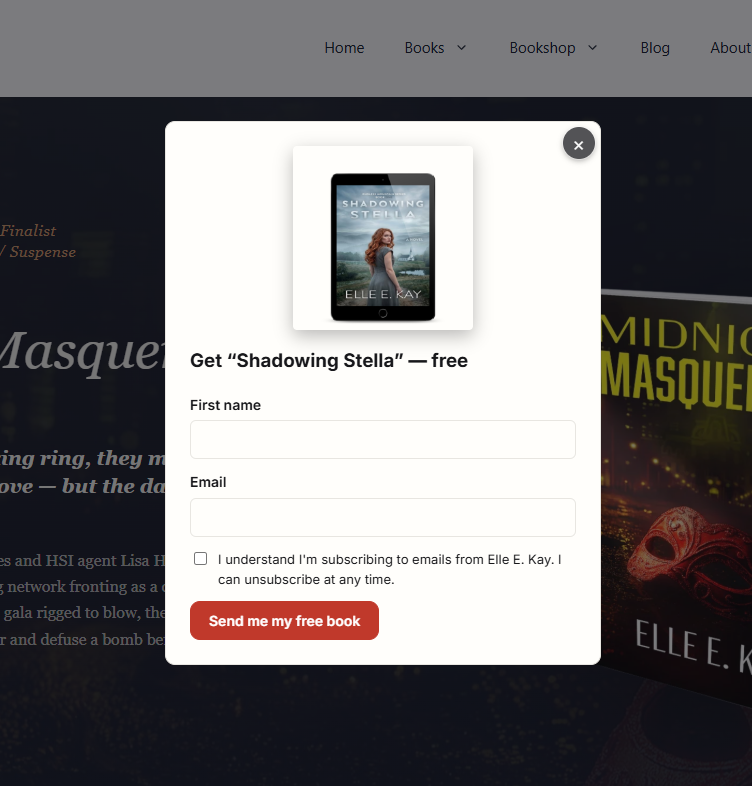
- A site-wide pop-up — pick a form in Settings NewsletterScriv and it appears in a centered overlay after a delay you control.
- Connect your store (optional) — if you sell with WooCommerce, paste a connection URL from your dashboard’s store section and each order can start a store automation — a thank-you email a few days after the purchase, for example. Cart automations can send a reminder when a shopper who entered an email leaves items behind, and either kind can include a single-use coupon, created in your WooCommerce admin automatically and locked to the email it was sent to. The emails live in your NewsletterScriv dashboard and stay editable any time; your site only reports what happened, and no tracking script is ever added to your pages.
The pop-up is polite by design: visitors who close it aren’t asked again for two weeks (you choose the number), and visitors who subscribe are never asked again. It closes on the ×, a click outside, or the Escape key.
An embedded form is the same form as your hosted NewsletterScriv page: same consent checkbox and wording, same double opt-in setting, same reader-magnet delivery, same bot defences.
External service: NewsletterScriv
This plugin is an integration for NewsletterScriv, an email service operated by GlyphStack LLC. The plugin displays forms that live in your NewsletterScriv account, so it must communicate with that service. It does not connect to anything else, and it sets no third-party cookies — the pop-up’s memory is kept in the visitor’s own browser (localStorage) on your site.
There are exactly three points of contact:
-
Displaying a form (visitors). Each form is shown in an iframe loaded from
https://newsletterscriv.com/embed/<your-form-id>. This happens in the visitor’s browser whenever a page containing one of your forms is viewed, and it is how the form is delivered. As with loading any page, NewsletterScriv receives the request — including the visitor’s IP address and browser user agent — and, if the visitor subscribes, the details they type into the form. No data about the visitor is collected by this plugin itself. -
Reading your form list (site administrators, optional). If you paste a NewsletterScriv API key under Settings NewsletterScriv, your site sends that key to
https://newsletterscriv.com/api/v1/formsto retrieve the names and ids of the forms in your account, so the block and settings screens can offer a menu instead of asking you for an id. This is a server-to-server request made only in the WordPress admin; the key is never sent to the browser or written into your pages. Leave the key empty and this request is never made — you can enter form ids by hand instead. -
Reporting your store’s orders and checkouts (optional, requires WooCommerce). If you paste a store connection key under Settings NewsletterScriv, your site sends each new order’s details — the order number, the buyer’s name and email address, the items, the applied coupon codes, and the total — to
https://newsletterscriv.com/api/integrations/store, so the purchase can start the store automations you build in your NewsletterScriv dashboard. It also reports a checkout in progress — the shopper’s email address, name, cart items, and total — once an identifiable shopper has items in their cart, so a cart automation can send a reminder if no order follows. When one of your automations includes a coupon, the service’s reply to such a report can instruct your site to create that single-use, email-locked coupon in WooCommerce. These are server-to-server requests; nothing runs in the visitor’s browser and no tracking script is added to your pages. A short notice under the checkout email field tells shoppers their email may be used for a cart reminder — its wording is editable under Settings NewsletterScriv, and it can be turned off. Leave the store section empty and none of these requests are ever made.
Service: newsletterscriv.com
Terms of Service: newsletterscriv.com/terms
Privacy Policy: newsletterscriv.com/privacy
A NewsletterScriv account is required for this plugin to display anything. The script that builds the form is bundled with the plugin and served from your own site.
Screenshots
Blocks
This plugin provides 1 block.
- NewsletterScriv Form
Installation
- In your WordPress admin, go to Plugins Add New, search for “NewsletterScriv Forms”, and click Install Now, then Activate.
- In your NewsletterScriv dashboard, create an API key under Account settings API keys. Paste it into Settings NewsletterScriv and press Save changes — you’ll see “✓ Connected”.
- Add the NewsletterScriv Form block to a page and pick your form from the menu (or use the shortcode), and/or choose a pop-up form under Settings NewsletterScriv.
Prefer not to connect? You can still paste a form id by hand — it’s on each form’s Put this form on your website card in your dashboard.
FAQ
-
Yes. The plugin displays signup forms that live in your NewsletterScriv account, so it needs an account to have something to show.
-
How do I connect my account?
-
Create an API key in your NewsletterScriv dashboard under Account settings API keys, then paste it into Settings NewsletterScriv. Once connected, the block and the pop-up settings list your forms by name — you never need a form id.
-
Where do I get the shortcode for a form?
-
Settings NewsletterScriv, under “Putting a form on a page”. Once your account is connected, every form in it is listed there with its shortcode already assembled — press Copy and paste it into a page, a Text widget, or your page builder. You never have to find the form’s id.
-
Can I use it without an API key?
-
Yes. Every block and shortcode accepts a form id directly. You’ll find the id on each form’s Put this form on your website card in your dashboard (it’s also the tail end of the form’s hosted link).
-
Is my API key safe?
-
The key is stored on your own WordPress server and only ever used server-to-server to read your form list. It is never sent to the browser or written into your pages.
-
Does the pop-up nag repeat visitors?
-
No. Closing it starts a quiet period (14 days unless you change it), and subscribing silences it permanently on that device.
-
No third-party cookies. The pop-up remembers “closed” and “subscribed” in the visitor’s own localStorage, on your site.
-
Can I show different forms on different pages?
-
Yes — each block or shortcode names its own form, so every page (and every entry point) can start its own welcome automation.
-
What does “Connect your store” do?
-
If you sell with WooCommerce, it reports each order — buyer, items, total — to your NewsletterScriv account, where the purchase can start a store automation (a thank-you email a few days later, for example). It also reports a checkout once a shopper who entered an email has items in their cart, so a cart automation can send a reminder if no order follows. Customers go to a store customer list kept separate from your newsletter audiences, the emails live in your dashboard and stay editable, and no tracking script is ever added to your pages. Without WooCommerce, or with the store section left empty, this feature does nothing.
-
How do the coupons work?
-
A store automation can include a single-use coupon. The code is generated by NewsletterScriv and created in your WooCommerce admin automatically, restricted to the email address it was sent to, with an expiry date you choose. If a shopper tries the code with a different email, the checkout error says plainly that the code only works with the email it was sent to. Expired codes that were never used are tidied away daily—there’s also a “Clean up expired coupons now” button under Settings NewsletterScriv. Codes that were redeemed are never removed.
-
Do shoppers know they may get a cart reminder?
-
Yes—a short note renders under the checkout email field (“We’ll use your email for your order—and to send a reminder if you leave items in your cart.”). You can edit the wording or turn it off under Settings NewsletterScriv.
Reviews
There are no reviews for this plugin.
Contributors & Developers
“NewsletterScriv Forms” is open source software. The following people have contributed to this plugin.
Contributors
Translate “NewsletterScriv Forms” into your language.
Interested in development?
Browse the code, check out the SVN repository, or subscribe to the development log by RSS.
Changelog
1.6.0
- New: Abandoned-cart reminders. With a store connected, your site reports a checkout in progress once a shopper who entered an email has items in their cart, so a NewsletterScriv cart automation can send a reminder if no order follows. Shoppers see a short notice under the checkout email field—its wording is editable under Settings NewsletterScriv, and it can be turned off.
- New: Coupons. Store automations can include a single-use coupon—the code is created in your WooCommerce admin automatically, locked to the email it was sent to, with an expiry date. Expired unused codes are cleaned up daily, and a “Clean up expired coupons now” button lives in settings. Redeemed codes are never removed.
- When a shopper tries a coupon with a different email address, the checkout error now says plainly that the code only works with the email it was sent to.
1.5.0
- New: Connect your store. Send WooCommerce order events to NewsletterScriv, so a purchase can start a store automation — a thank-you email a few days later, for example. Paste a connection URL from your dashboard’s store section under Settings NewsletterScriv; your site only reports the order, the emails live in your dashboard where you can edit them any time, and no tracking script is ever added to your site.
1.4.3
- The pop-up’s close button is now clearly visible against both light and dark forms, and no longer inherits your theme’s button styling (which could stretch it out of shape).
1.4.2
- Your saved API key is no longer displayed on the settings screen. It shows as
nsk_live_••••••••with the last four characters, so a screenshot or a screen-share can’t give it away. Leave the field blank to keep the saved key, paste a new one to replace it, or tick “Remove the saved key” to disconnect.
1.4.1
- The plugin’s home page link now opens the guide directly, instead of asking you to sign in first.
1.4.0
- Settings NewsletterScriv now lists every form in your account with its shortcode ready to copy. Embedding a form outside the block editor — a classic editor, a Text widget, a page builder — no longer means finding a form id.
1.3.0
- The embed script now ships inside the plugin and is served from your own site instead of being fetched from newsletterscriv.com.
- The script tag now carries an explicit version, so browsers pick up changes on upgrade.
1.2.0
- Added a “View details” panel showing what changed in each release.
1.1.0
- Connect your NewsletterScriv account with an API key and pick forms from a menu — in the block and in the pop-up/default-form settings. No more copying form ids. Pasting an id by hand still works.
1.0.0
- First release: inline form block, shortcode, site-wide pop-up settings.